























Help article
Conference Room - With video, audio, chat, screen sharing, and livestreaming
Description:
Contact your users directly in the form of a video conference room from your app. Use optional chat in addition to video and audio. Sharing your screen makes it easy to implement presentations
In addition to sharing to a livestreaming via YouTube, the module can also be placed in a protected submenu to limit the user group.
The feature relies on the well-known free Jitsi video service and easily allows 20 simultaneous participants and more.
Handling:
Restricted User Group - The conference can be additionally protected or restricted using a PIN or user. The PIN is valid for all users equally and can be changed at any time in the administration. Users only need to enter it once within the app, so it is stored there and will only be requested again if it is changed. User based restriction allows you to explicitly specify users who will be granted access.
Required short PIN - Choose a numeric PIN of any length.
Note text to facilitate PIN specification - Optionally, you can store a note that will be displayed before the PIN is entered, giving the user a hint where to ask or apply for it, for example.
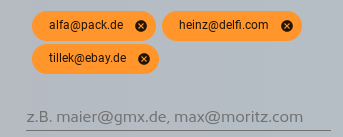
Registered users who get access - Specify here separately the users via their registered email address. In addition confirm in each case by input, so that this is deposited. Also not yet created users can be indicated here already.
Operation during use:
The use during a conference is basically very intuitive and self-explanatory for most users at the first moment. In addition to the camera, microphone, and chat option located at the bottom, a user can end the conference at any time by clicking the red button in the top right corner.
Depending on the device used, screen sharing becomes possible. In the current version, this is mostly allowed on desktop systems from within the app.
Tip:
- If you want to restrict your user group, it is sufficient to move the menu item to a protected submenu or select and set the "Restricted user group" option.
- By hiding the menu item, you generally disable access to the conference room available at any time.